Lesson 1
Give AI an Empty Lab to Work In
Create a local project folder, then ask AI to inspect the environment and explain its plan before making changes.
Hoppy had just worked out one important part of AI-assisted research:
People are responsible for the question and its boundaries. AI can help with the programs and data.
He opened the AI chat he normally used and typed:
I have an idea about stocks, and I want to use data to see whether it holds up. Can you help me build the program for the research?
AI answered almost immediately:
Of course. We can prepare the data first and then analyze it with Python. Here is the first piece of code…
Code filled the screen, one block after another.
Hoppy scrolled all the way down, then all the way back up.
It looked as if the work had already begun, but nothing had happened on his computer.
He stared at the screen for a moment and asked:
“Wait. Where are all these things now?”
The code was in the chat.
But it had not been saved in a real project or run on Hoppy's computer. He did not know whether his computer could run it, and if it failed, he did not know whether AI would be able to see what had actually happened.
AI had shown him how the program might be written.
They still were not standing at the same workbench.
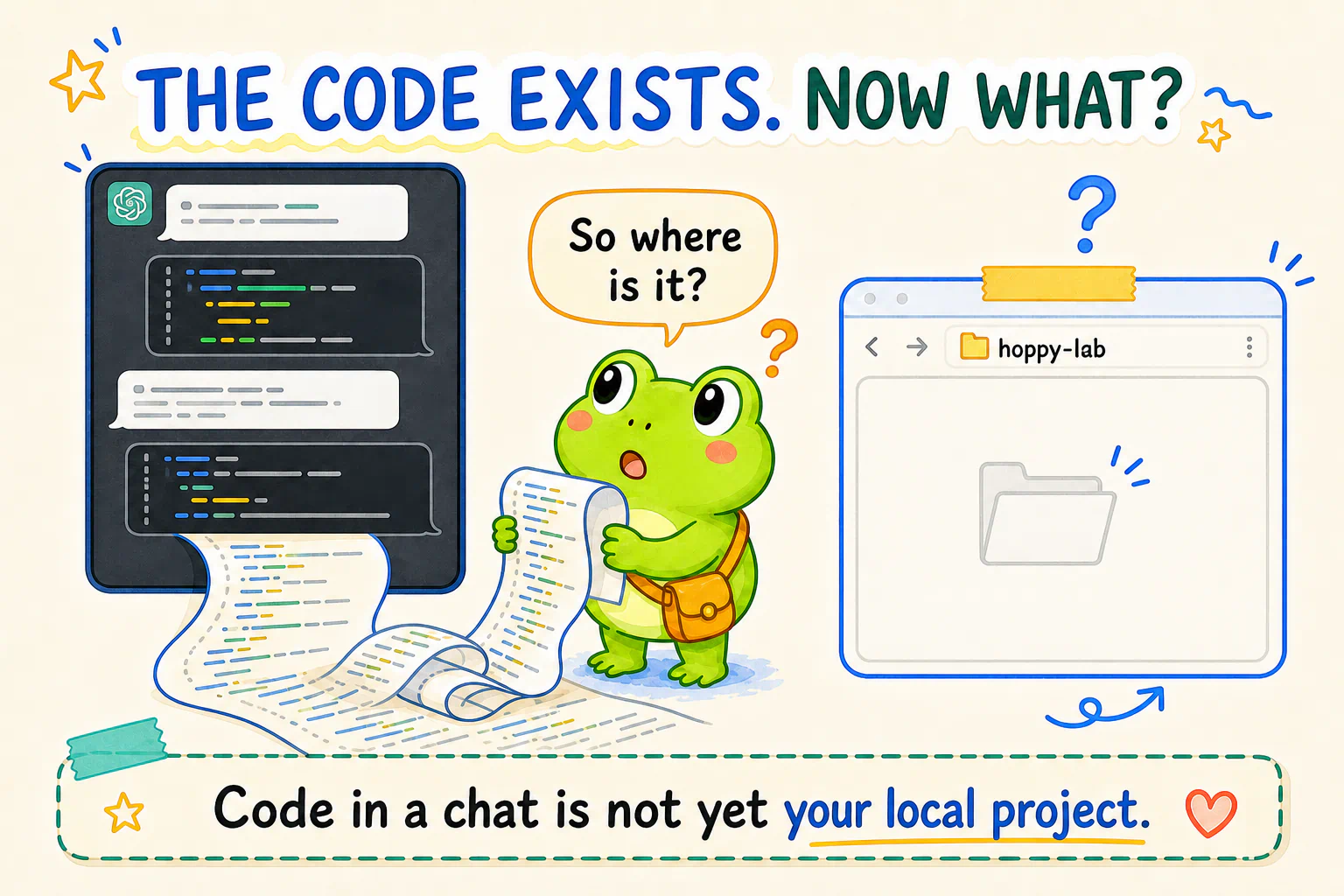
Code in a chat is not yet your project
A regular chat tool is excellent for discussing ideas, explaining concepts, and even writing code.
But if it is not working inside your local project, it usually cannot see:
- where the code is actually saved;
- what is already in the folder;
- which tools are installed on your computer;
- how the program was just run;
- which file produced the error on your screen;
- whether a change truly fixed the problem.
That leaves many beginners carrying things back and forth:
Copy code from the chat
→ create a file
→ paste the code
→ try to run it
→ capture the error
→ paste the error back into the chat
This can work.
Our course uses a different kind of collaboration. With your permission, AI enters one dedicated local folder, reads the files that really exist there, runs the real program, and continues from the actual result.
Codex is more than a different chat box
Hoppy still had a question:
“If I send the same request to Codex, will the program simply start working?”
Dr. Hop shook his head.
“Codex does not become all-knowing because you changed chat boxes. The real difference is whether AI can join you at the workbench.”
An AI that stays inside an ordinary chat can usually see only what you choose to send it.
Paste in some code, and it can explain that code. Paste in a screenshot of an error, and it can reason from the screenshot. But you still have to carry information back and forth before it knows which files really exist, what just ran, or whether a change worked.
Codex uses a different working arrangement.
After you select a local folder and allow it to work within that boundary, it can:
- inspect the files that really exist in the project;
- create or edit project files;
- run programs and necessary commands;
- read actual results and errors;
- continue investigating from what just happened.
Here is the difference in its simplest form:
Chat-based AI
You describe the situation
→ AI suggests what to do
→ you carry the suggestion back to the computer
Codex
You choose a local workbench
→ you and AI inspect the same situation
→ AI acts within the permission you grant
→ you inspect the real result together
This does not mean Codex can freely inspect your whole computer. It does not mean every change it makes will be correct either.
You still decide which folder it may enter, when it may edit, and which actions need an explanation first.
We will call this kind of tool a local AI research assistant.
We are not moving to Codex merely to find an AI that chats better.
We are moving from advice across a chat box to working with AI on a real project, within a boundary we choose.
Codex is our default. If Codex is not available to you, you can use WorkBuddy instead.
WorkBuddy plays the same role in this course. Its interface and workflow may differ, but the same learning method applies if it can read a local project, run programs, see errors, and continue investigating.
Now that the difference is clear, we can install the tool and choose an empty laboratory for it to work in.
Save the official links first
Downloads and interface instructions change over time. This chapter uses official sources only; avoid look-alike third-party download sites.
Codex
- Codex desktop app and official download page: the page provides download options for the current system and a desktop quick start;
- Codex official documentation: start here when you need another feature;
- Codex guide to projects and chats: explains the relationship between ordinary chats, projects, and local folders.
You may notice that the download button currently says “Download ChatGPT” and that the guide refers to the “ChatGPT desktop app.” You have not taken a wrong turn. When this chapter was checked, the official desktop entry point for Codex was provided through the ChatGPT desktop app.
WorkBuddy
- WorkBuddy official website;
- WorkBuddy official download page;
- WorkBuddy product overview;
- WorkBuddy first-task guide;
- WorkBuddy official Mac installation guide;
- WorkBuddy official Windows installation guide.
You do not need to read every page now. The links are there to help you find the current version. For the moment, we only need to let AI enter the empty folder you are about to create.
These links and instructions were checked on August 30, 2026. If the interface later differs from this chapter, trust the current official guide and verify which local folder you actually selected.
Prepare an empty room
Do not write the game yet. Do not install Python yet.
Choose a place on your computer that you can find again and create one dedicated empty folder.
You can call it:
hoppy-lab
Or give it any name that makes sense to you.
The name is not a test answer. It only needs to remind you, “This is where my quantitative-learning project lives.”
Avoid handing AI your entire Desktop, Downloads folder, or home directory as its laboratory. Those places may contain photos, work documents, account information, and other material that has nothing to do with this course.
A separate empty room makes it easier to see what AI adds later and less likely that unrelated files will get in the way.
If you do not yet have a suitable tool, install and sign in through one of the official links above. We will not cover every installation route or advanced option here. Once the tool can open a local folder, come back to this chapter.
Put the folder on the Codex workbench
The Codex quick start calls this step Choose where to work. Its official explanation is short:
“Start a chat, create a project, or open a folder.”
In plain English, you can begin an ordinary chat, create a project you will return to, or open a folder already on your computer.
We will keep using this lab to build a game, save data, and generate charts. Choose a local project or local folder, not a temporary conversation with no folder attached.
In the current interface, the path looks like this:
- Create the
hoppy-labfolder on your computer; - open Codex and find Select project on the start screen;
- find
hoppy-labin the system folder picker; - select the folder and confirm with Open;
- begin a new conversation inside that project.
If you are already inside another project, you can also add or switch folders from the project menu. Button names may change, but the real goal will not: give the current conversation the context of this lab folder.
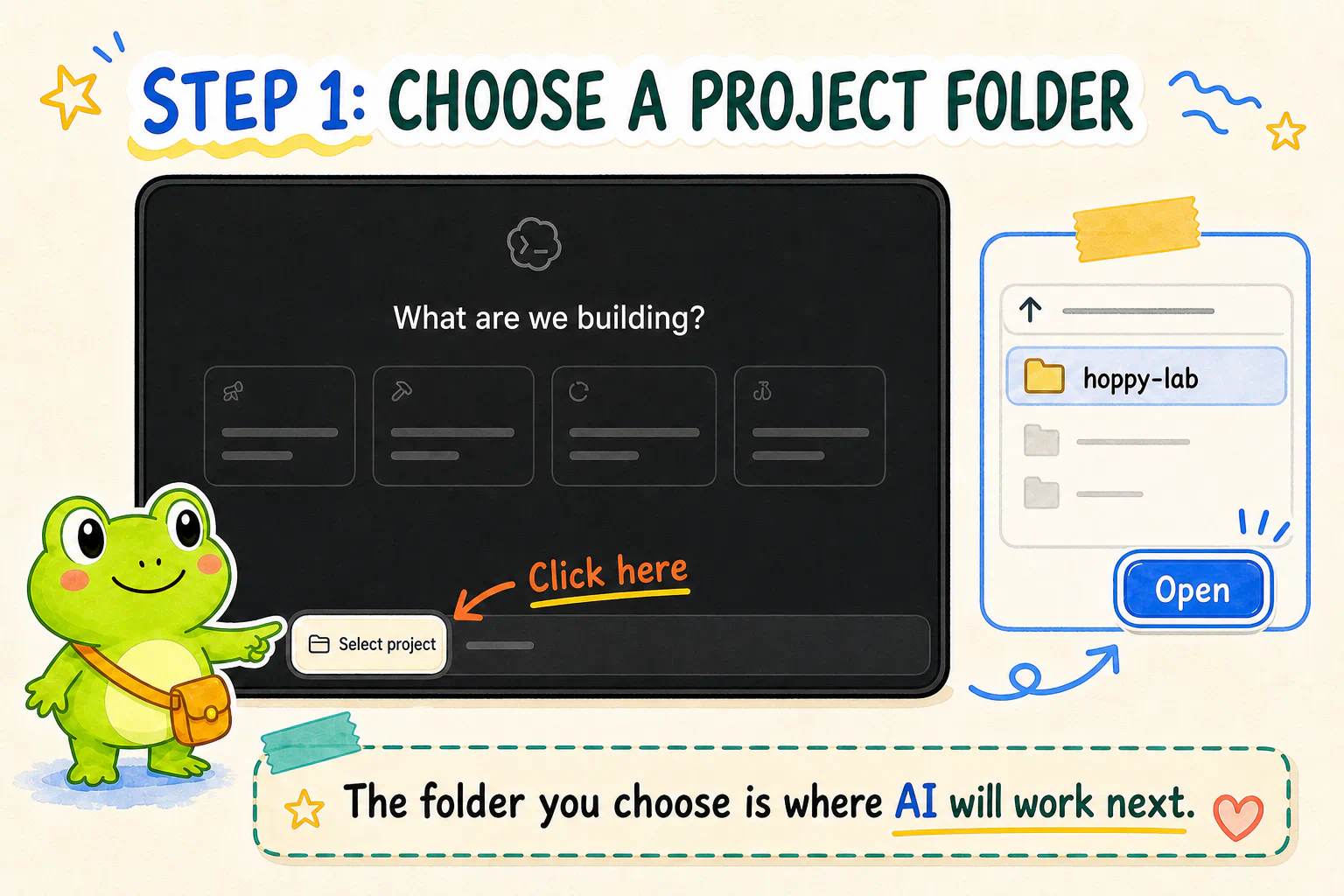
If you use WorkBuddy, you do not need to find identical buttons. Follow its current quick start, create a task, and grant that task access to this lab folder. You will still use the conversation below to confirm what it can actually see.
Once the folder is open, do not put AI to work just yet.
First, make sure everyone has entered the same room.
For the first conversation, just look around
You can tell AI:
Try it
I am going to build a small project in this folder.
You may inspect the current directory and the necessary read-only information, but do not create or edit files and do not install anything yet.
In plain language, tell me which folder you can see, what is already inside it, and how you could help next.
You do not need to copy this word for word.
You could simply say:
Do not start yet. Look around and tell me where we are and what is in this folder.
Both versions express the same intent:
Here is the small goal in front of us
→ observe first
→ do not change anything yet
→ tell me what is actually here
AI's answer does not need to match a course screenshot either.
It might report the current directory first. It might list what it can see. Some tools will explain their permissions; others may simply say that the folder contains no project files yet.
The one thing we need to confirm is whether it can see the lab you just created.
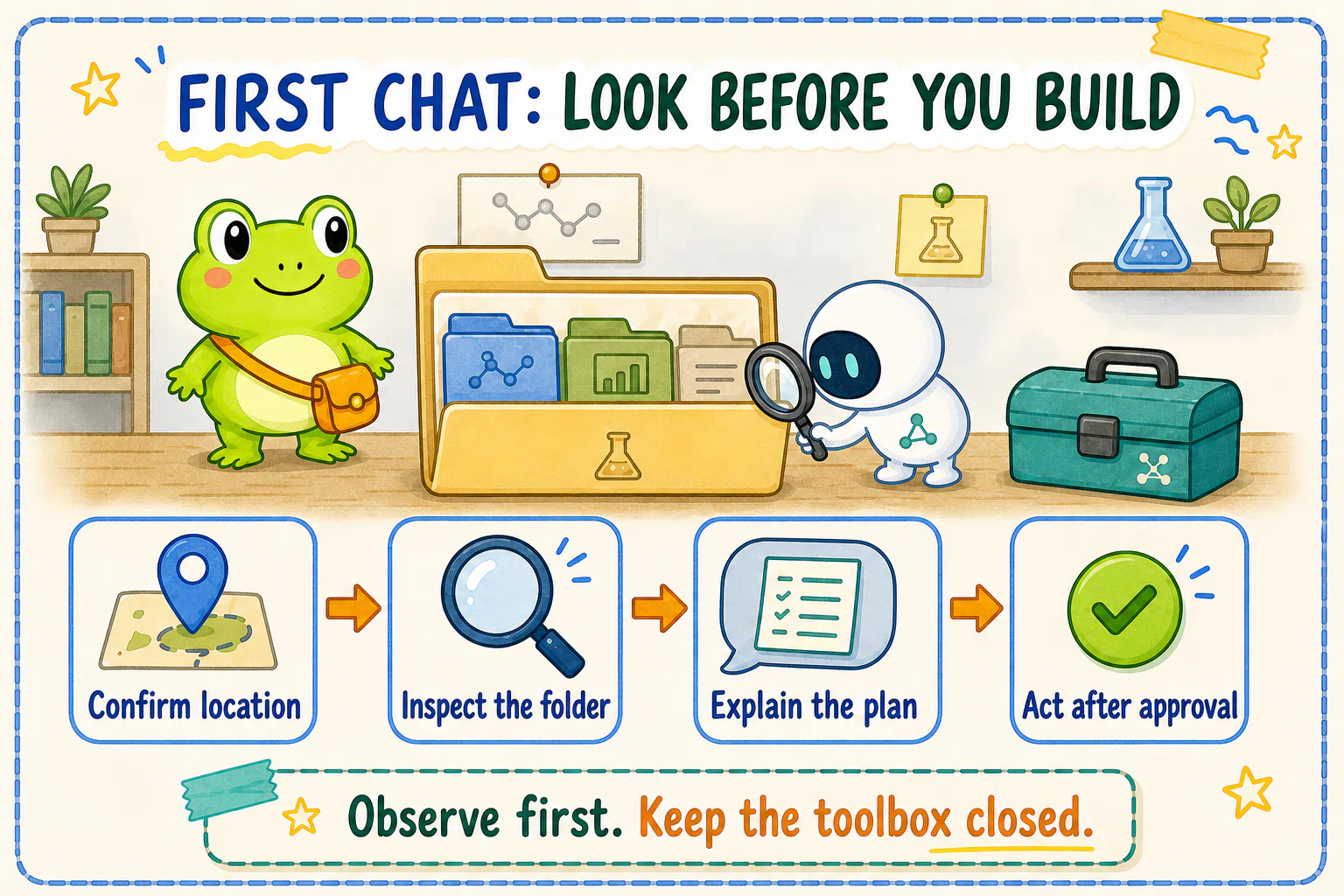
If AI reports an obviously different directory, do not continue.
Ask:
Do not change anything yet. Confirm the current working directory again and tell me how to switch you to the folder I just created.
If it cannot read the directory, do not let it imagine a project and start writing code. Ask it to explain what it can access, which permission is missing, and which action you need to perform yourself.
This is not a trick question for AI.
If neither of you knows which workbench you are standing at, the next file can easily land in the wrong place.
When AI gets too enthusiastic, ask it to put the tools down
AI sometimes sees the words “small Python project” and immediately prepares to:
- create a full directory structure;
- install a long list of packages;
- write the entire game;
- add tests, documentation, and extra features while it is there.
It is probably trying to be helpful.
But we have not decided what the game needs, and we have not even checked what is already installed. If too much changes at once, a failure becomes much harder to understand.
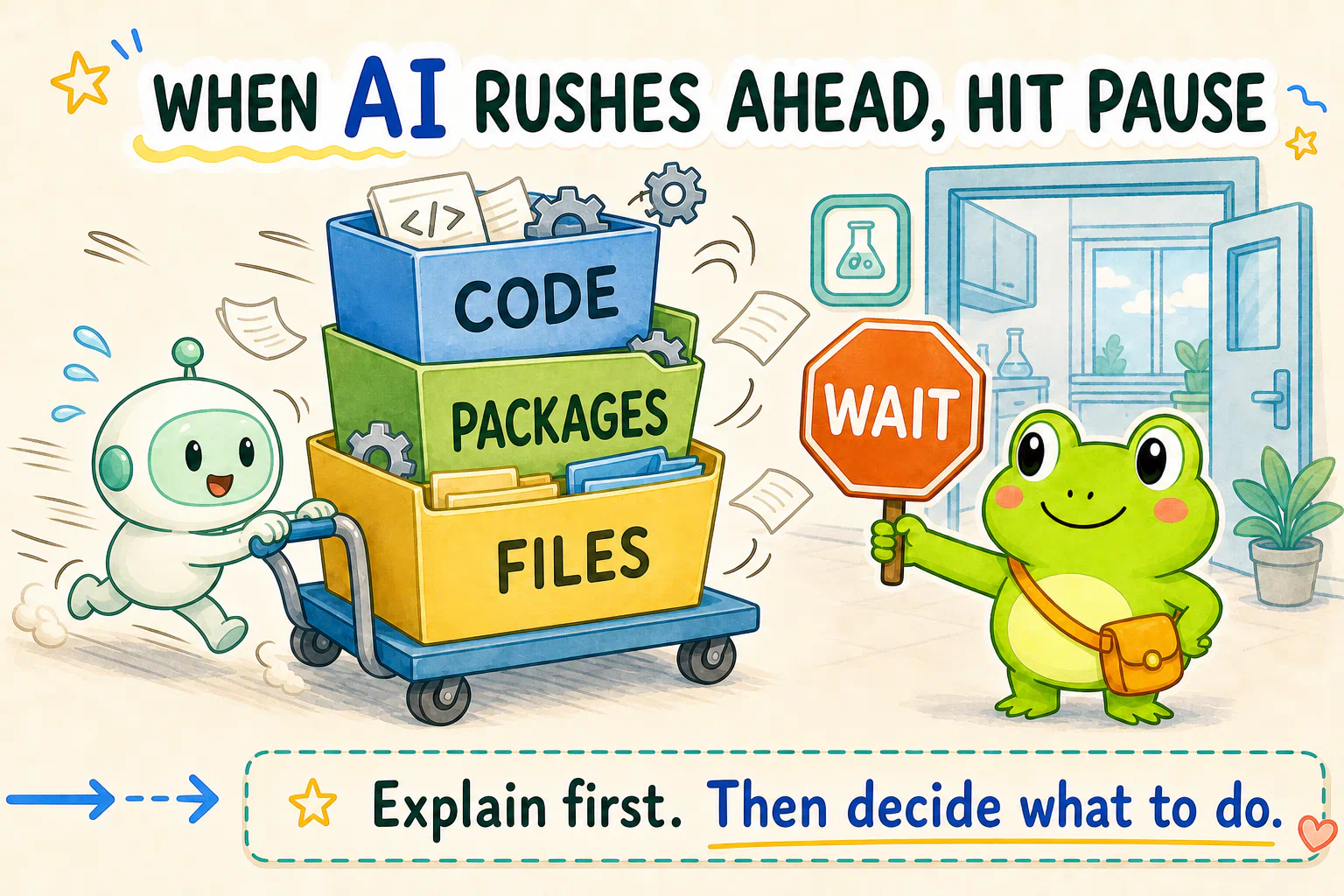
If AI has started sprinting, say:
Pause. Do not create or install anything else. Only explain what you were about to do and why each part is needed.
If it has already changed files, do not panic.
First ask it to list exactly what it created or modified. Then decide what to keep and what to deal with. Avoid saying only “put everything back,” and do not request a large deletion before you understand what it would affect.
Our first exercise is not about writing a perfect prompt.
It is about using one ordinary sentence to slow AI down and put the current situation back on the table.
Four moves are enough for now
Later, we will ask AI to write programs, process data, draw charts, and investigate errors.
You do not need every collaboration technique at once.
Start with four moves:
State the small goal in front of you
→ let AI inspect the real situation
→ ask it to explain what it plans to do
→ act only after you agree
None of this requires a page-long prompt.
“Take a look first. Do not edit anything.”
“What are you planning to do? Explain it in plain language.”
“Only build the smallest version in this step. Do not add extra features yet.”
All three are perfectly useful instructions.
If you leave something unclear, AI should help by asking questions. You can go back and forth for several turns instead of squeezing every possible requirement into one message.
The skill worth practicing is not memorizing a magic spell. It is seeing what is happening now and knowing what to ask next.
Even an empty lab needs boundaries
This folder will gradually fill with code, data, configuration, and results.
For now, protect two boundaries.
First, do not place passwords, API keys, identity documents, private photos, or confidential work material in the course project. Do not paste those things into public discussions or screenshots either.
Second, if AI wants to delete or overwrite many files, or run an operation you do not understand that could have a large impact, ask it to stop and explain what it plans to change, why the change is needed, and what could be affected if it fails.
These rules do not mean you should be afraid of AI.
If a new helper visits your home, telling them which room you are working in and which drawers do not need to be opened is perfectly normal.
How do you know the lab is ready?
You do not need to submit a screenshot or make your folder look exactly like ours.
Continue the conversation with your current AI assistant:
Check it with your AI research assistant
Tell me again which project you are currently viewing and what is already inside it.
If our next step is to build the simplest possible Python game, which environment details should we check first? Do not create files or install anything yet.
Use its answer to check that:
- you know where the lab folder actually lives;
- AI is looking at the same folder;
- you understand what it has inspected so far;
- it has not quietly placed a complete project in the folder;
- you know a small game comes next, but installation and development have not started yet.
If one of these points is unclear, keep asking.
For example:
You said this is the current project. How can I confirm that on my own computer?
Or:
You mentioned Python and packages. Do not install them yet. Explain in one plain sentence what problem each one solves.
There is no single correct conversation and no single correct answer.
If you and AI can continue while looking at the same local project, your lab now has a floor, a nameplate, and a workbench.
It is still empty.
That is a good thing.
If you are starting directly with the practical course
Not knowing Python does not need to keep you outside.
Before working with market data, however, it helps to check whether a few basic ideas are already clear. Ask the AI you just opened to hold a short, ungraded conversation with you:
Optional self-check
I am about to begin a stock-market quantitative exercise with help from AI.
Ask me a few short questions to find out whether I understand these ideas: a stock is not the same thing as the company; prices are influenced by expectations; a market intuition needs to become a question that evidence could challenge; an indicator, signal, strategy, and backtest are not the same thing; and a historical backtest cannot promise future returns.
Do not score me and do not test my Python knowledge. Ask one question at a time. If my answer is vague, ask a follow-up. At the end, explain in plain language which ideas I can already describe and which ones I should review.
AI does not need to know the name of this course or any internal course number.
It is only helping you notice which ideas are ready to enter practice and which ones might let the research question quietly change later.
The self-check will not block you from continuing.
If you cannot answer one of the questions yet, write it down. You can return to the relevant theory when the practical work makes that gap visible.
Next, we will place the first genuinely runnable thing inside the lab: a small game in which Hoppy moves left and right and catches falling bubbles.
We will not begin by memorizing a list of Python installation commands.
We will tell AI what we want to see, then let it inspect what this particular computer actually needs.
Lesson discussion
Share a question, insight, or different view—and see how other learners are thinking.